Setting Up Wallet Balances
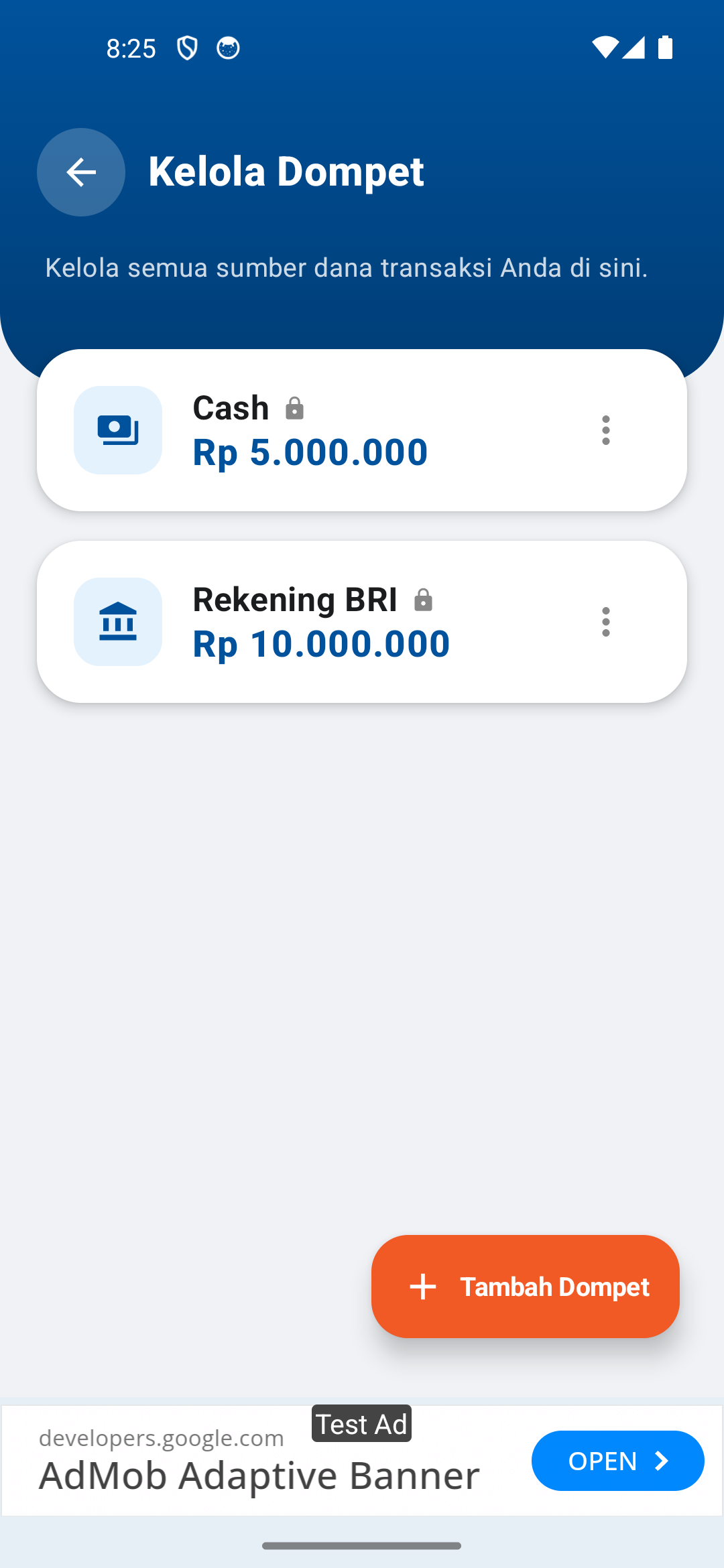
Before recording customer transactions, match the app's wallet balances with your actual cash on hand and bank balance. By default, the app provides two locked core wallets: Cash and Rekening BRI.
How to Set Initial Balances
- From the Home screen, tap Dompet (Wallets) in the quick menu.
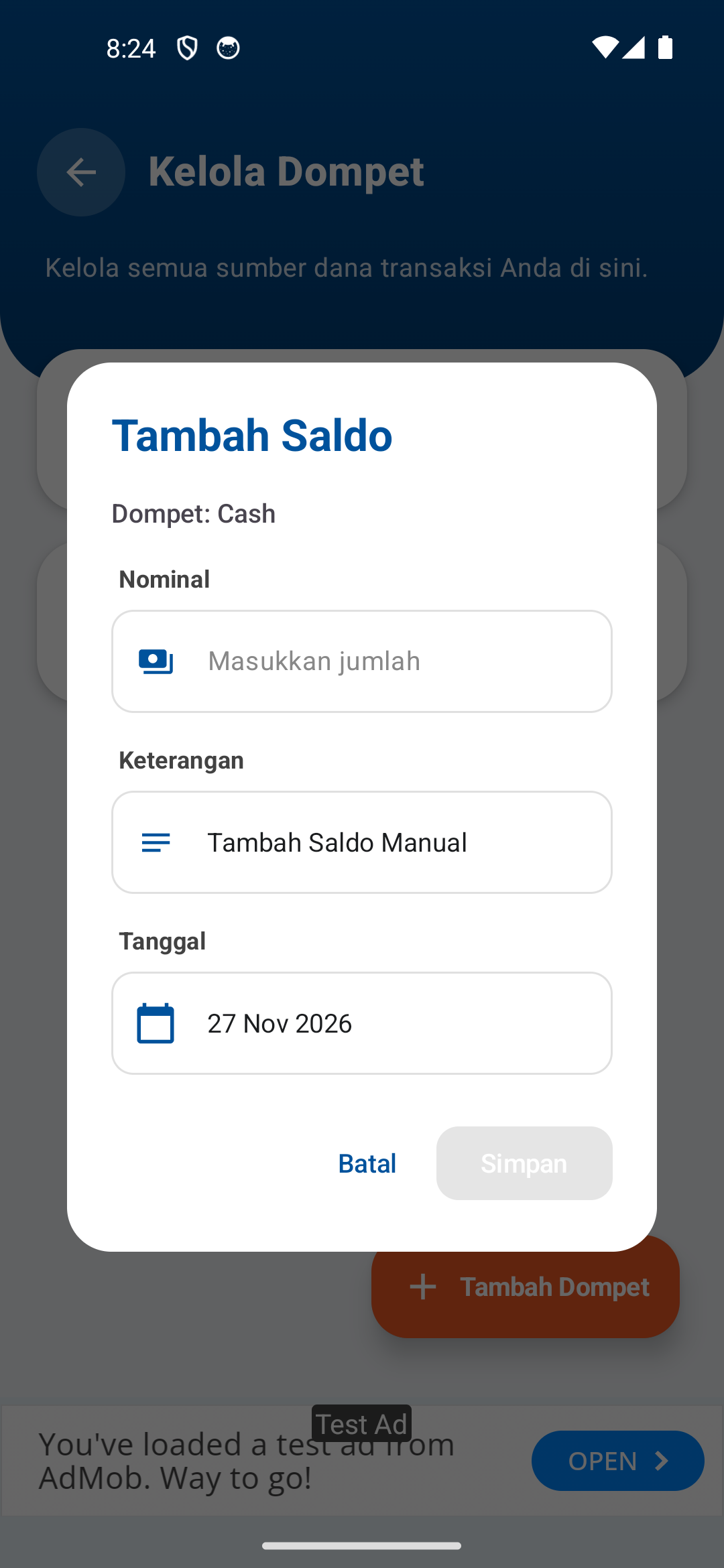
- On the Cash card, tap the three-dot menu on the right and choose Tambah Saldo (Add Balance).
- Enter the Nominal (Amount) of cash currently in your drawer (for example,
5.000.000). - Keep or edit the Keterangan (Note) and Tanggal (Date), then tap Simpan (Save).
- Repeat the same steps for Rekening BRI to enter your starting bank balance (for example,
10.000.000).
Once saved, the Kelola Dompet (Manage Wallets) screen displays all funding sources clearly:
Other Wallet Actions
Tap the three-dot menu on any wallet card to access:
- Lihat Riwayat (View History): shows all transactions tied to that specific wallet.
- Tambah Saldo (Add Balance): record manual capital additions or top-ups.
- Tarik Saldo (Withdraw Balance): record manual withdrawals out of the wallet.
- Pindah Saldo (Transfer Balance): move funds from one wallet to another (for example, when depositing physical Cash into Rekening BRI).
- Edit Informasi (Edit Info): rename the wallet.
Adding Extra Wallets
If your counter uses additional bank accounts or e-wallets (such as DANA, OVO, or other banks):
- Tap the orange + Tambah Dompet (Add Wallet) button at the bottom right.
- Enter the wallet name and starting balance, then save.