Customers, Transaction Types, and Fee Suggestions
To speed up daily counter entries and avoid typos, you can configure these master lists from the Quick Menu row on the Home screen.
Managing Customers
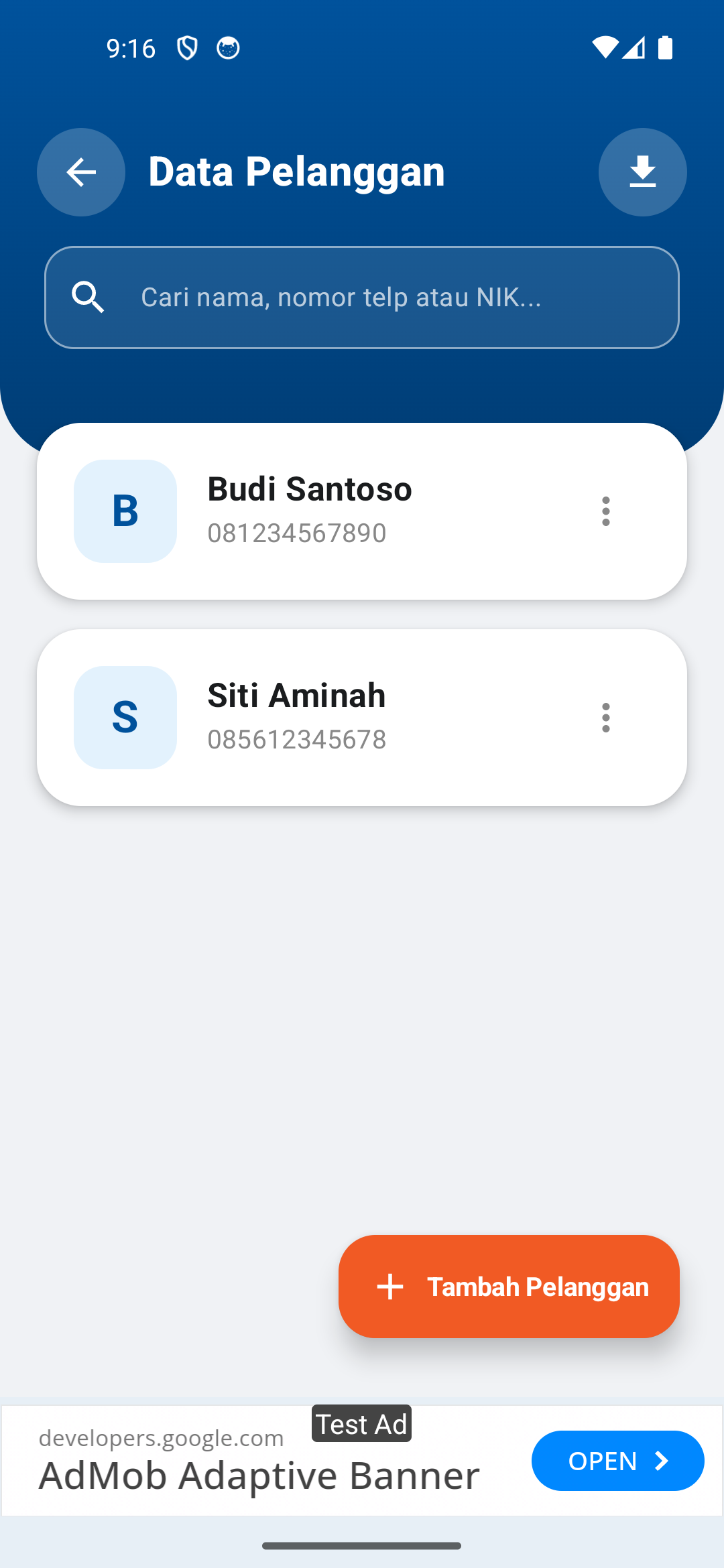
Tap Pelanggan (Customers) in the Home Quick Menu to open the Data Pelanggan directory. It serves as your local customer address book with live search, quick transaction shortcuts, WhatsApp chat, and Excel export.
Adding and Editing Customers
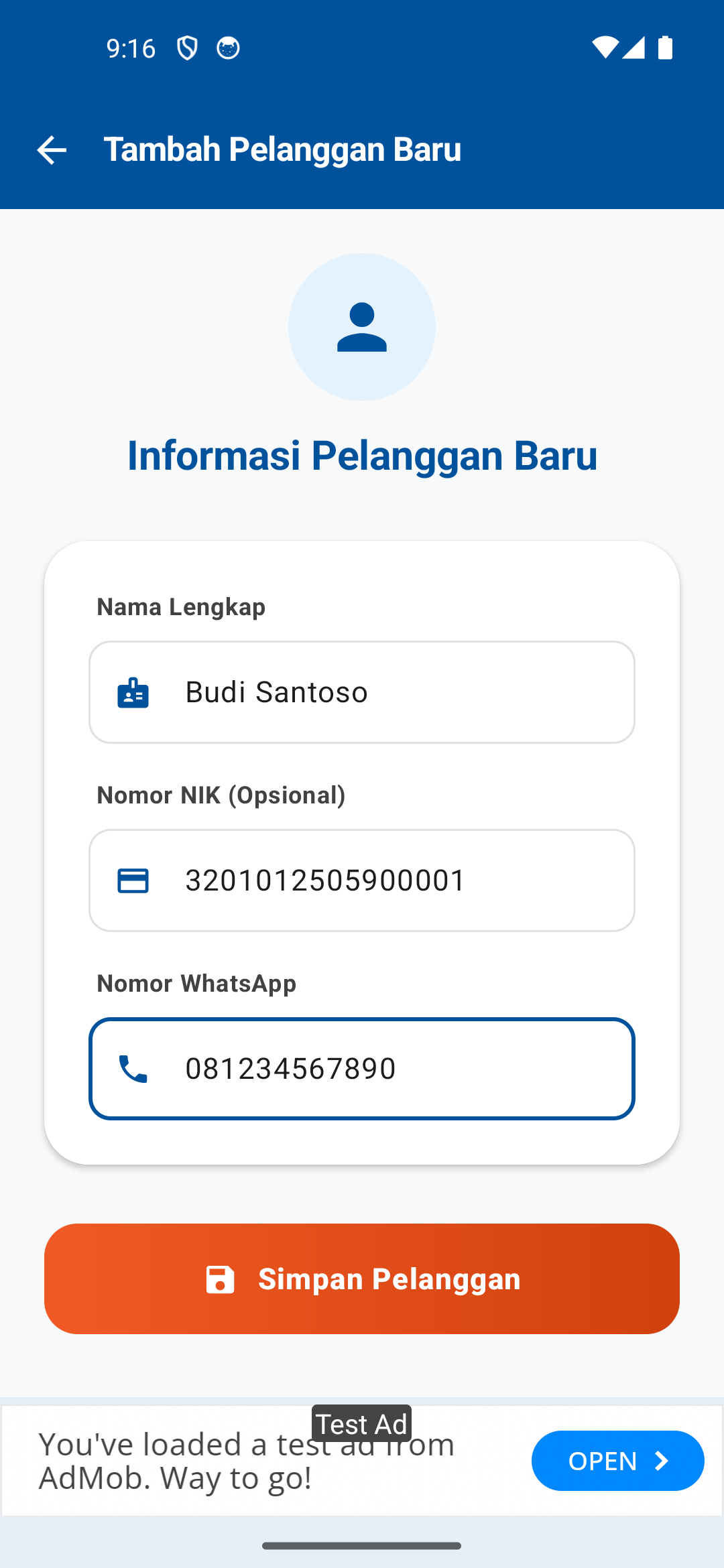
- Tap the orange
+ Tambah Pelangganbutton in the bottom right. - Fill in the customer fields:
- Nama Lengkap (Full Name) (required): the Simpan Pelanggan (Save Customer) button unlocks once a name is entered.
- Nomor NIK (Optional): 16-digit Indonesian National ID number if you need to keep ID records for specific transactions.
- Nomor WhatsApp (WhatsApp Number) (optional): recommended if you want to message the customer via the Chat WhatsApp shortcut.
- Tap Simpan Pelanggan to save.
To edit an existing customer, tap the three-dot icon on their card and select Edit Profil, or open their profile and tap the pencil icon in the top right.
Search, Excel Export, and Quick Action Menu
From the Data Pelanggan screen, you have several built-in shortcuts:
- Search Bar: type any part of a customer's Name, Phone/WhatsApp number, or NIK at the top to filter the list instantly.
- Export to Excel: tap the download icon in the top right to export your entire customer list into an
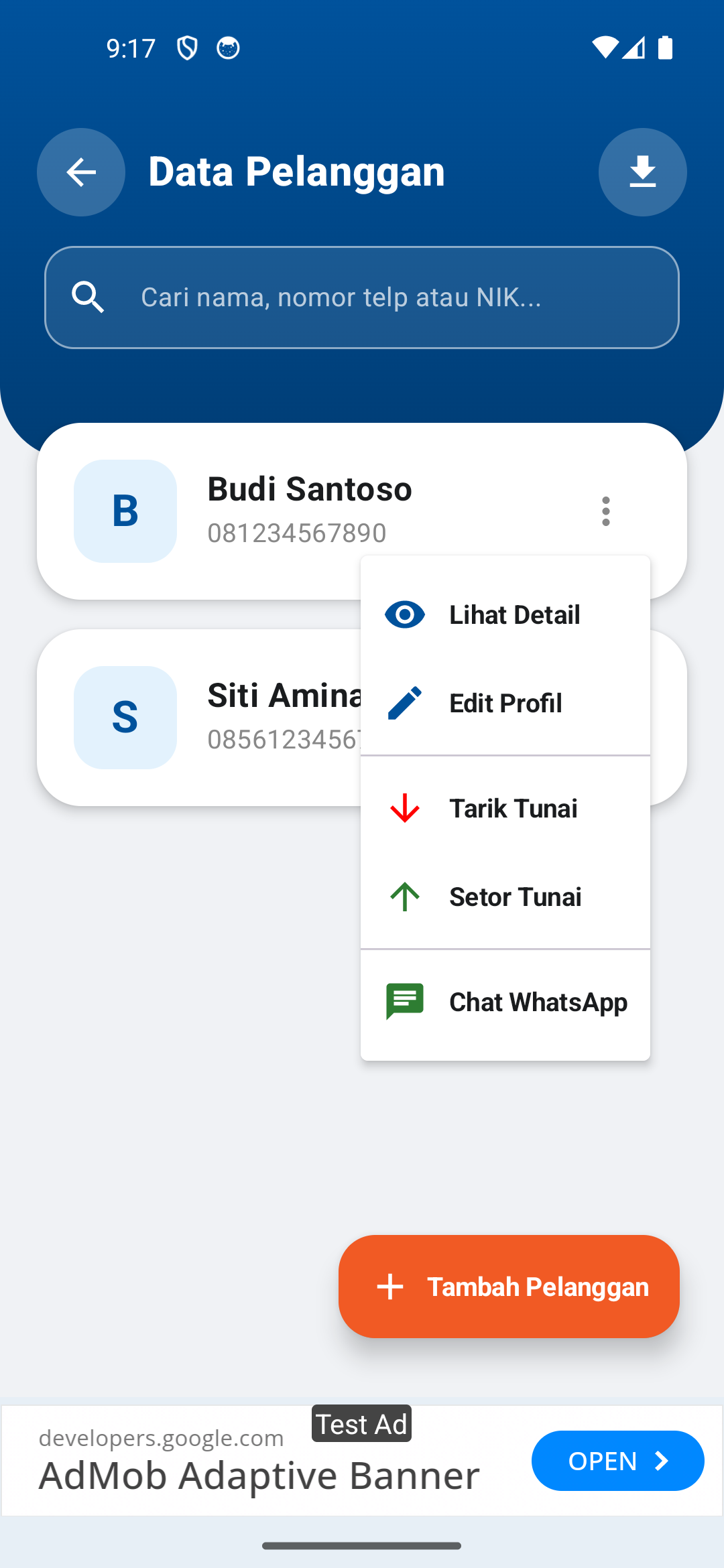
.xlsxfile (Data_Pelanggan_BRILink_...xlsx) containing ID, Customer Name, NIK, and Phone Number columns. The file is saved to your device's Download folder. - Three-Dot Menu on Each Card: tap the options button on the right side of a customer card for quick actions:
- Lihat Detail (View Details): opens the Customer Profile screen.
- Edit Profil (Edit Profile): updates name, NIK, or phone number.
- Tarik Tunai (Cash Withdrawal) / Setor Tunai (Cash Deposit): jumps straight into the New Transaction form with that customer and transaction type pre-selected.
- Chat WhatsApp (shown when a phone number is saved): opens a WhatsApp chat directly to the customer's number.
Customer Profile and Deleting Records
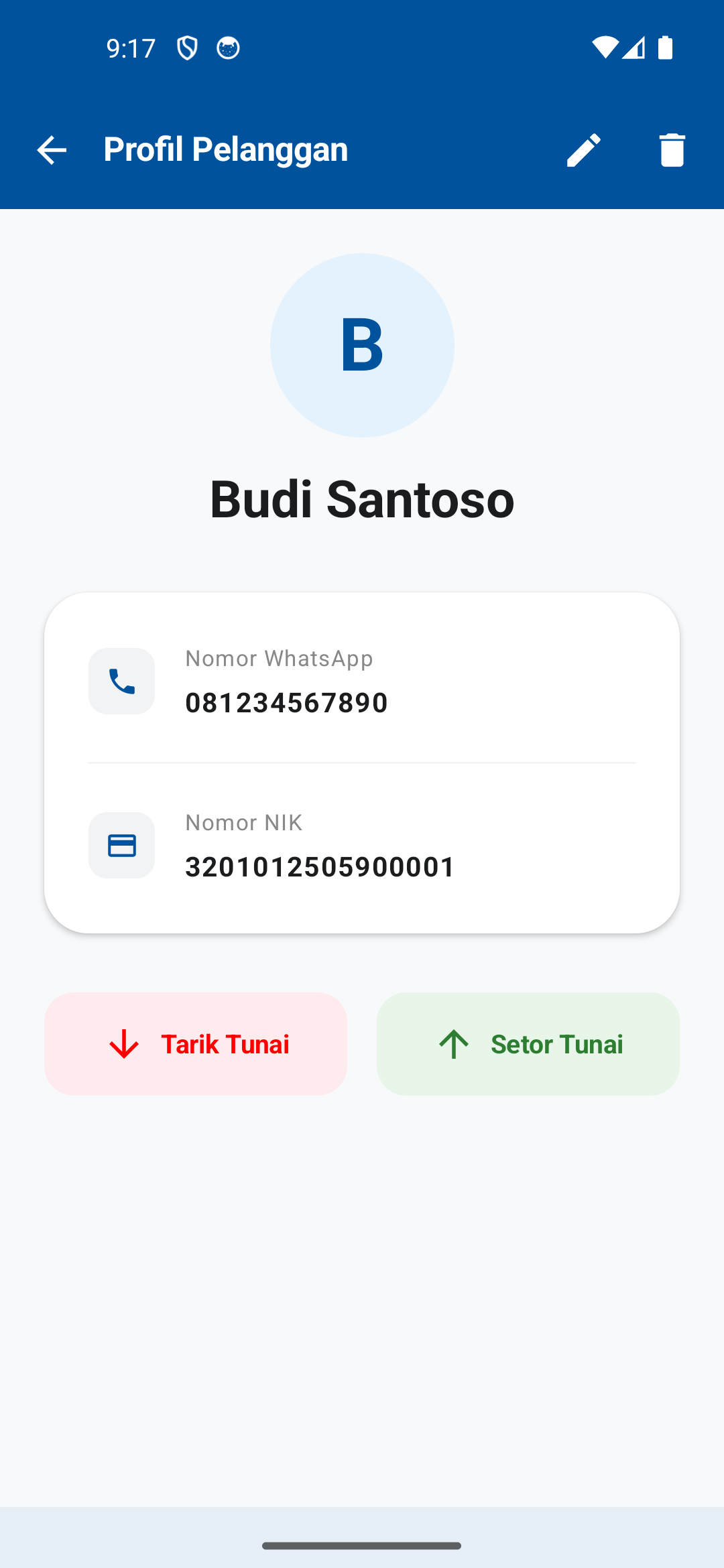
Tap any customer card (or choose Lihat Detail) to open the Profil Pelanggan screen. Here you can review their saved Nomor WhatsApp and Nomor NIK, start a Tarik Tunai or Setor Tunai transaction directly using the two buttons at the bottom, or use the top-right toolbar icons:
- Pencil Icon: edit the customer's profile.
- Trash Icon: permanently delete the customer record (a confirmation dialog Hapus Pelanggan? appears first to prevent accidental deletion).
Selecting or Adding Customers During a Transaction
You do not need to register every customer ahead of time. Inside the Transaksi Baru (New Transaction) form, tap Pilih Pelanggan (Opsional) and type a name, phone number, or NIK to pick a saved customer. If they are new, tap Tambah Pelanggan Baru at the bottom of the dropdown to add them on the spot.
Managing Transaction Types
Open Jenis Transaksi (Transaction Types) to review or add services offered at your counter:
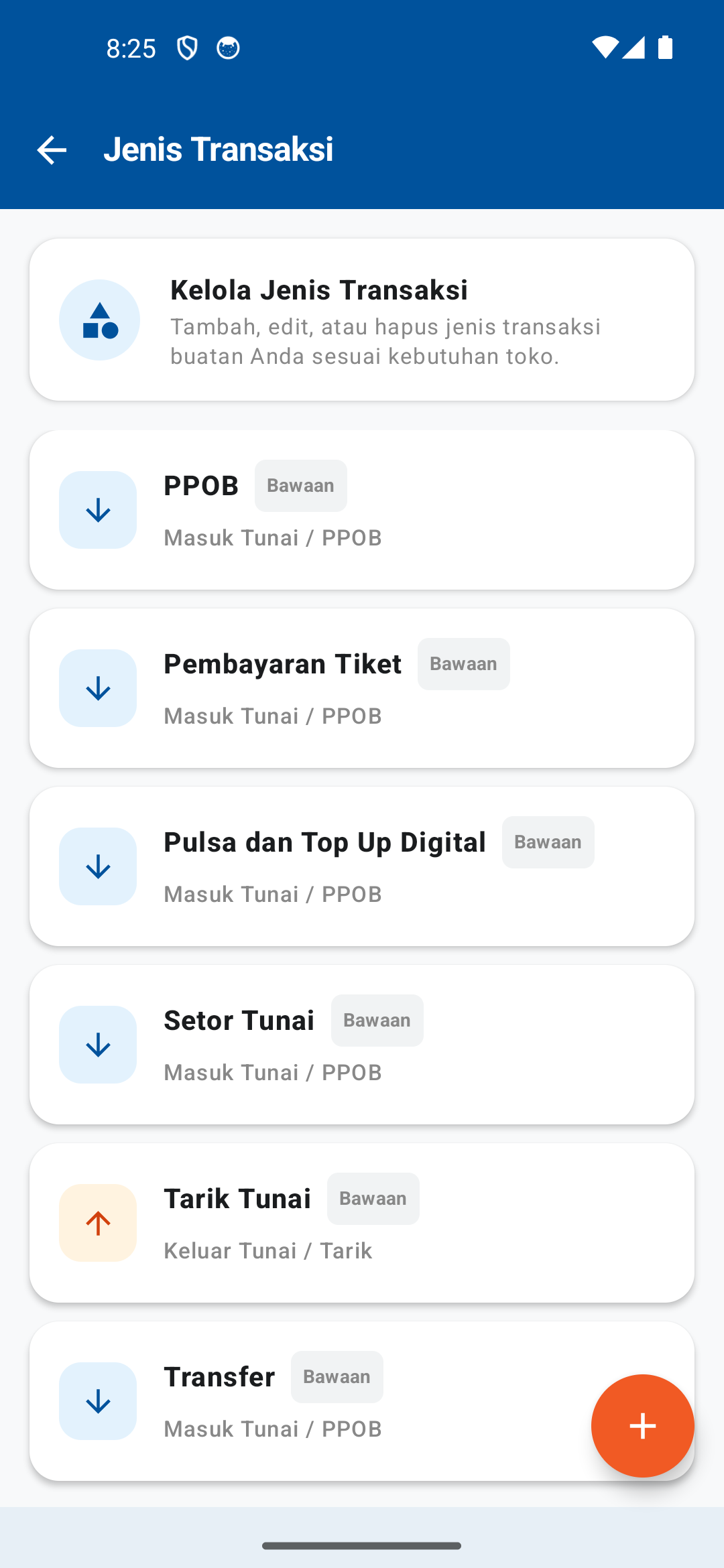
Six default types are built in:
- Tarik Tunai (Cash Withdrawal)
- Setor Tunai (Cash Deposit)
- Transfer
- PPOB (Bill Payments)
- Pulsa dan Top Up Digital (Mobile Credit & Digital Top-Up)
- Pembayaran Tiket (Ticket Payments)
You can add custom transaction types anytime to match your counter's services.
Managing Fee Suggestions
Swipe the Quick Menu row left and open Saran Biaya (Fee Suggestions) to customize the quick-tap amount chips shown under Admin Bank and Biaya Jasa (Service Fee) in the transaction form.
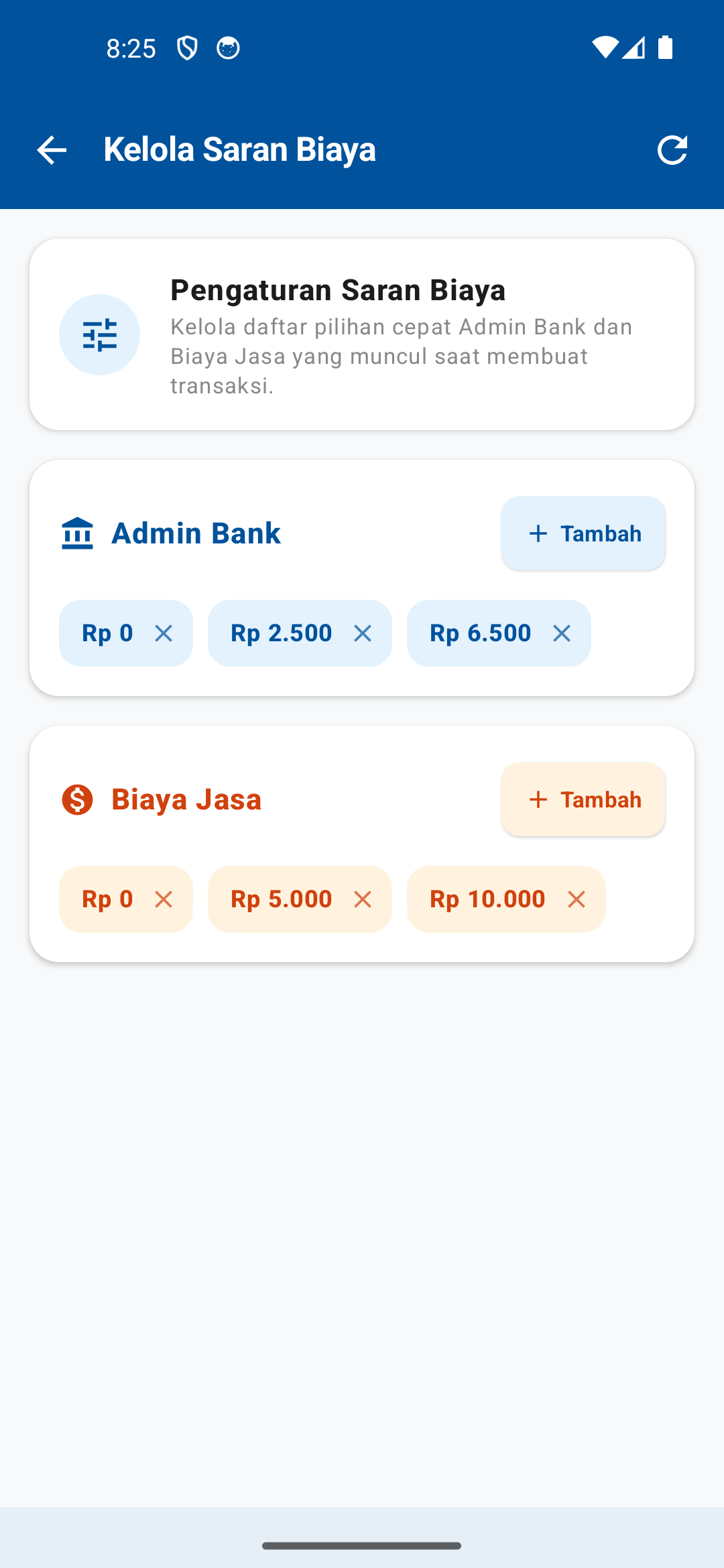
- Add the fee amounts you charge most often (for example
2.500,3.000,5.000,10.000). - Tap the refresh icon (Reset Default) in the top right to restore the original presets.