Data Backup & Restore
All bookkeeping records (transactions, wallets, customers, and transaction types) are stored 100% locally on your device and never uploaded to our servers. Regular backups protect your ledger when switching or resetting phones.
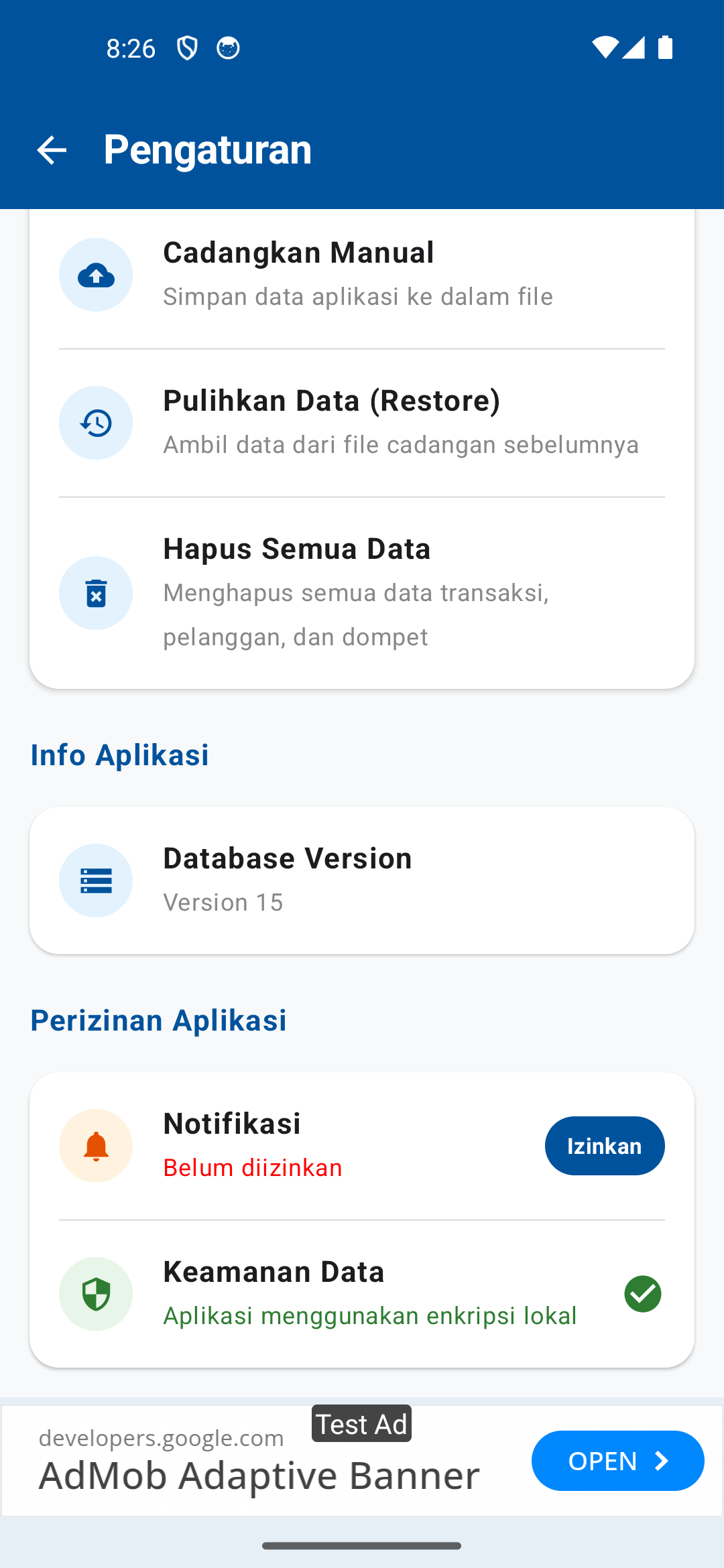
Tap the three-dot menu in the top right of Home, choose Pengaturan (Settings), and scroll down to Data & Cadangan (Data & Backup).
1. Auto Backup (Recommended)
- Turn on the Auto Backup switch.
- Pick a folder on your device (for example, a dedicated
Backup_BRILinkfolder). - Once enabled, the app automatically backs up your database every time the app opens.
2. Manual Backup
- Tap Cadangkan Manual (Manual Backup).
- Choose where to save the
.dbbackup file (named likeBackup_Pembukuan_BRILink_xxxx.db). - You can copy this
.dbfile to Google Drive, a flash drive, or a computer for extra safety.
3. Restore Data
When moving to a new phone or reinstalling the app:
- Tap Pulihkan Data (Restore).
- Pick your saved
.dbbackup file. - In the confirmation dialog, type
YAKINand tap YA, PULIHKAN (YES, RESTORE).
4. Delete All Data (Reset)
To start completely fresh, tap Hapus Semua Data (Delete All Data) and type RESET to confirm. This permanently erases all transactions, customers, and custom wallets.
App Permissions
At the bottom of Settings, you can also check Notifikasi (Notifications) permission status (used to notify you when an Excel export finishes). Tap it to open Android app settings if it is not yet granted.