Transaction History, Receipts, and Excel Export
Every financial entry you record is stored in Riwayat Transaksi (Transaction History). From here you can search past records, filter reports by date and wallet, export Excel (.xlsx) spreadsheets, send digital receipts to customers, and inspect exact balance calculations.
Exploring Transaction History
There are two ways to open Riwayat Transaksi:
- From the Home screen, tap Lihat Semua (View All) next to Riwayat Transaksi Terbaru to see all entries.
- From the Dompet (Wallets) screen, tap any wallet to jump straight into history pre-filtered for that wallet.
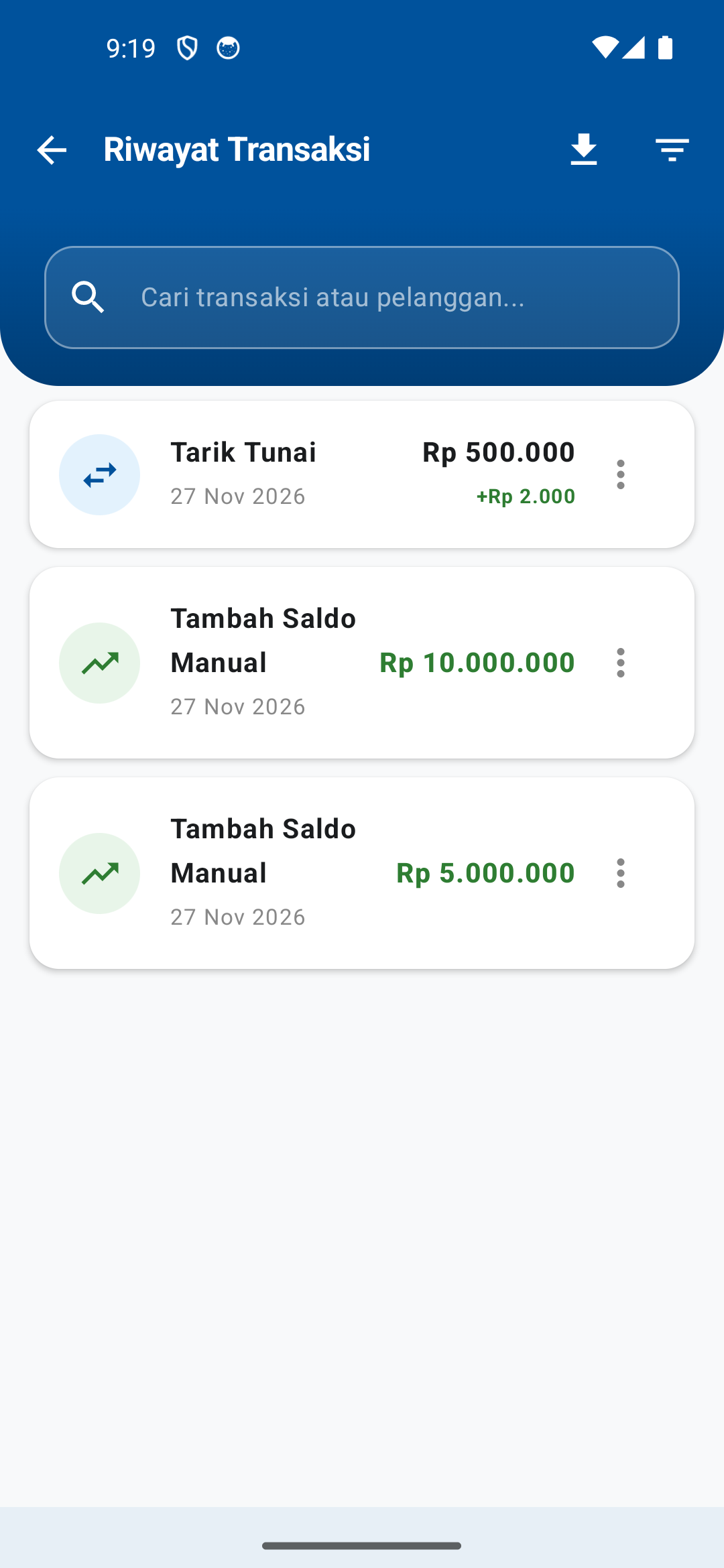
How to read the list at a glance:
- Search Bar: type into Cari transaksi atau pelanggan... to filter entries live by Transaction Type/Description, Customer Name, or Note.
- Transaction Icons & Colors:
- Blue (swap arrows): transfers between two wallets, such as Tarik Tunai, Setor Tunai, Transfer, or Pindah Saldo Manual. Whenever the entry earns net profit, a green
+Rp ...label appears below the amount. - Green (upward arrow): one-way inflow into a wallet, such as Tambah Saldo Manual.
- Orange (downward arrow): one-way outflow from a wallet, such as Tarik Saldo Manual.
- Blue (swap arrows): transfers between two wallets, such as Tarik Tunai, Setor Tunai, Transfer, or Pindah Saldo Manual. Whenever the entry earns net profit, a green
Filtering History by Date and Wallet
Tap the Filter icon (top right) to open the Filter Transaksi bottom sheet. You can combine date and wallet filters together, and even stack them with the search bar.
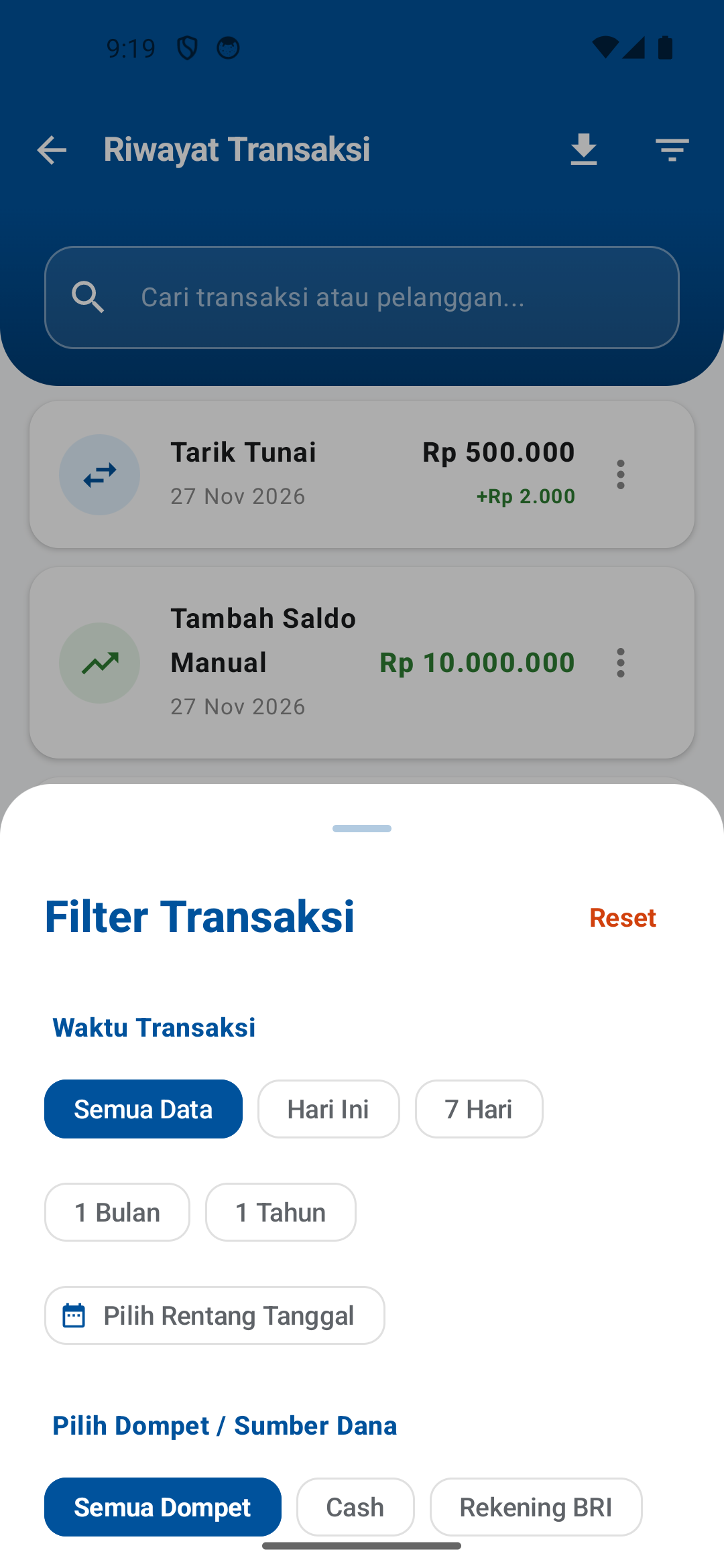
Available options inside Filter Transaksi:
- Waktu Transaksi (Date Range):
- Semua Data (All Data): shows all entries with no date limit.
- Hari Ini (Today): shows today's entries only.
- 7 Hari (7 Days): entries from the last 7 days.
- 1 Bulan (1 Month): entries from the last month.
- 1 Tahun (1 Year): entries from the last year.
- Pilih Rentang Tanggal (Select Date Range): opens a calendar picker to choose any custom Start and End dates (ideal for weekly closing or custom recaps).
- Pilih Dompet / Sumber Dana (Wallet / Funding Source):
- Semua Dompet (All Wallets): includes transactions across every wallet.
- Specific Wallet (such as Cash or Rekening BRI): lists every transaction involving that wallet as either the source (outflow) or destination (inflow).
- Tap Terapkan Filter (Apply Filter) to update the list, or tap Reset in the top right of the sheet to clear all active filters.
Exporting Reports to Excel (.xlsx)
You can export bookkeeping data directly to an Excel (.xlsx) file from two screens:
- Bulk Report Export: tap the Export Excel icon (download arrow in the top right of Riwayat Transaksi).
- Single Transaction Export: tap the Export Excel icon in the top right of Detail Transaksi.
Exported file details:
- Location & Filename: saved to your phone's Download folder as
Riwayat_Pembukuan_BRILink_...xlsx. Once exported, an Ekspor Berhasil notification appears so you can open the spreadsheet with one tap. - 15 Complete Columns in the Riwayat Transaksi sheet:
ID,Tanggal,Waktu,Deskripsi,Nominal,Admin Bank,Biaya Jasa,Total Bayar,Laba Bersih,Dompet Sumber,Dompet Tujuan,Pelanggan,NIK,No Telp, andCatatan.
Transaction Detail, Digital Receipts, and Read-Only Form
Each row on Home or Transaction History supports two inspection modes: tapping the card opens the digital receipt, while tapping the three-dot icon on the right lets you inspect the full calculation form or delete the entry.
Viewing and Sharing Customer Receipts
Tap any transaction card to open Detail Transaksi and view its digital receipt:
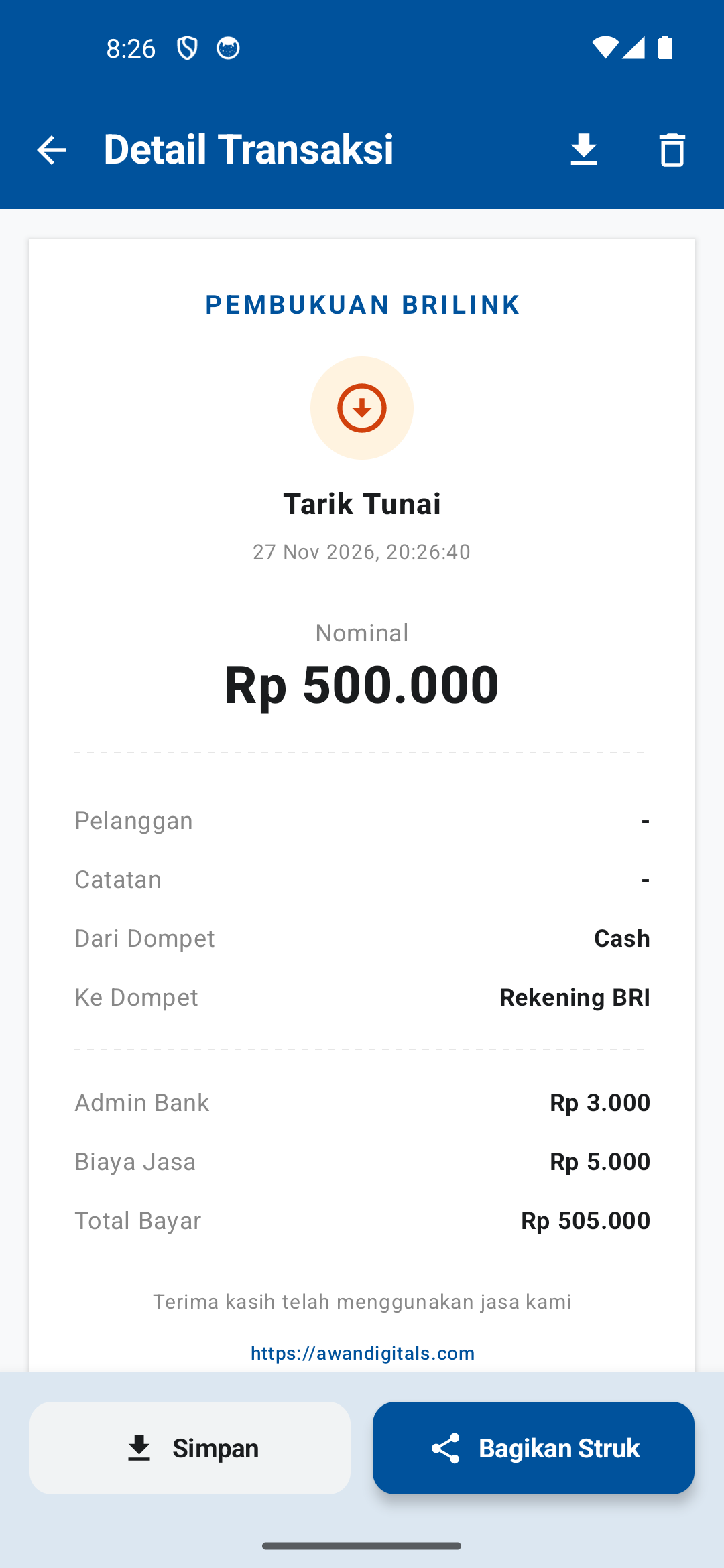
- Simpan (Save): saves the receipt as an image in your gallery (ad-free).
- Bagikan Struk (Share Receipt): sends the receipt image directly to your customer via WhatsApp, Telegram, or other apps (ad-free).
- Export Excel (top right): exports that single transaction to
.xlsx. - Delete (trash icon): deletes an accidental entry and automatically reverts the affected wallet balances.
Inspecting System Calculations via the Three-Dot Menu
Tap the three-dot icon on the right side of a transaction row to open quick options:
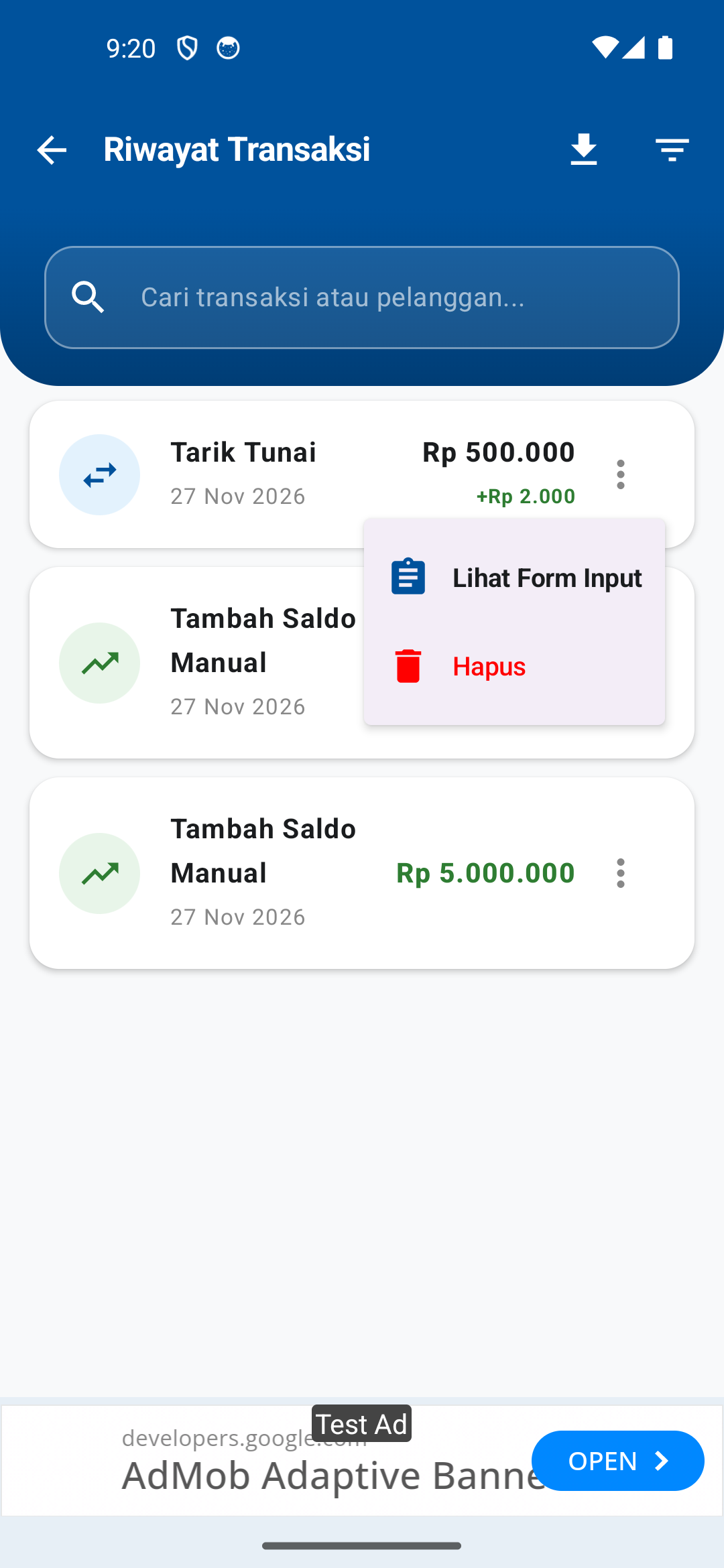
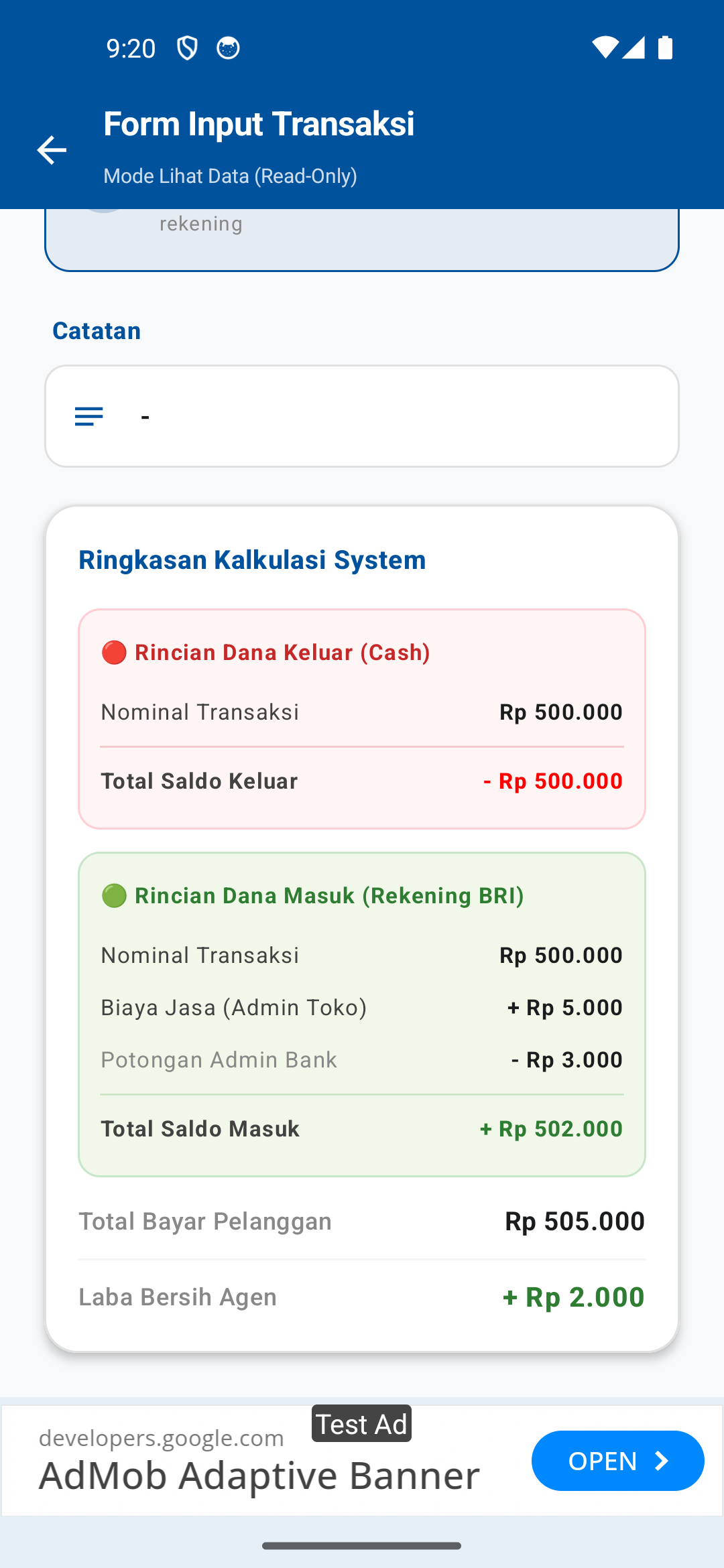
- Lihat Form Input (View Input Form): opens Form Input Transaksi (Mode Lihat Data / Read-Only). It displays every original field (date, customer, source/destination wallets, Admin Dalam/Luar method) alongside the Ringkasan Kalkulasi System card (Outflow Breakdown, Inflow Breakdown, Customer Total Payment, and Agent Net Profit). This is helpful whenever you want to audit how an older entry changed your wallet balances.
- Hapus (Delete): deletes the entry directly from the list and automatically restores the wallet balances.