Reading, Reflow, and Read Aloud
Tap any document on Home to open it in the Viewer. Tap the page once to hide or show the top bar (fullscreen mode), pinch to zoom up to 4x, or drag the scrollbar thumb on the right edge to jump across pages quickly.
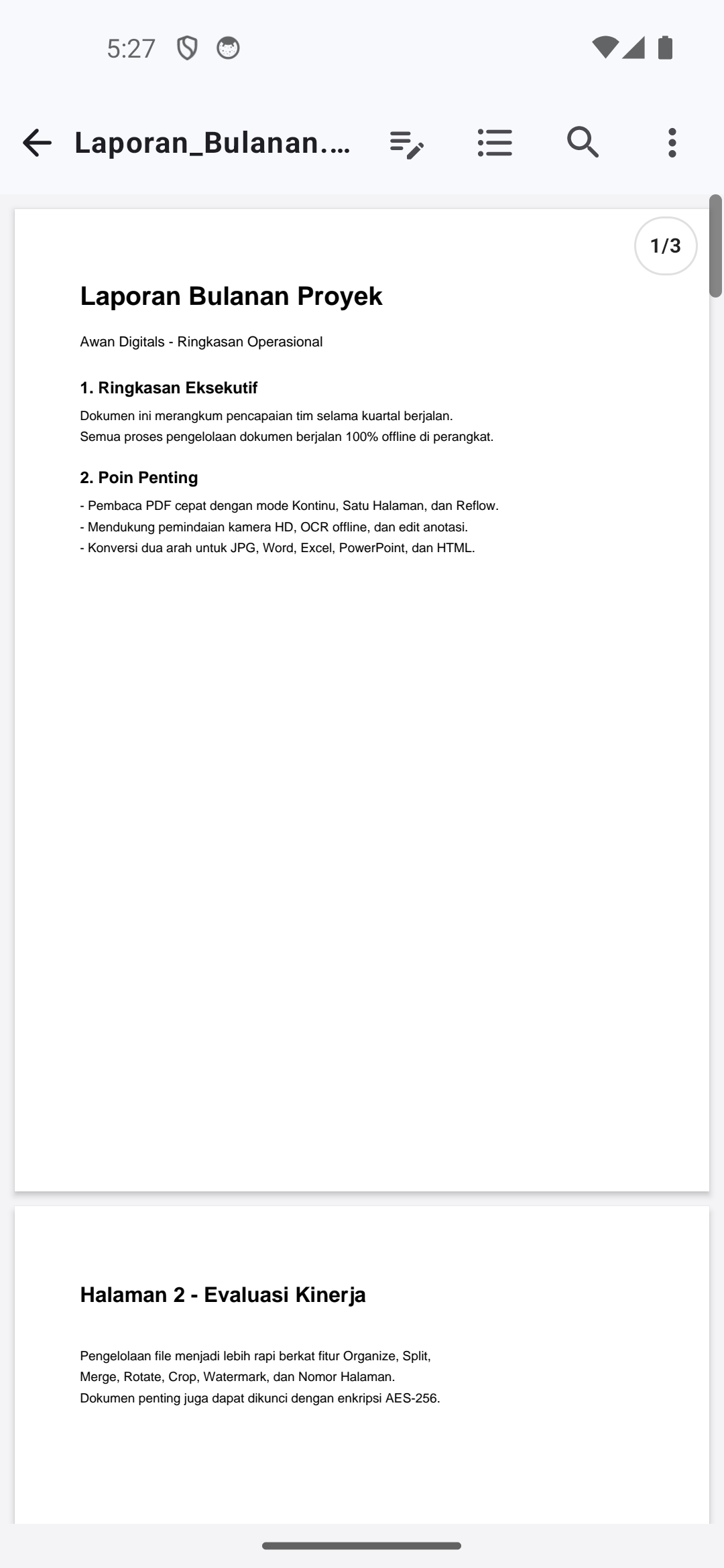
View Settings
Tap the three-dot menu in the top right and open View Settings to adjust how documents appear:
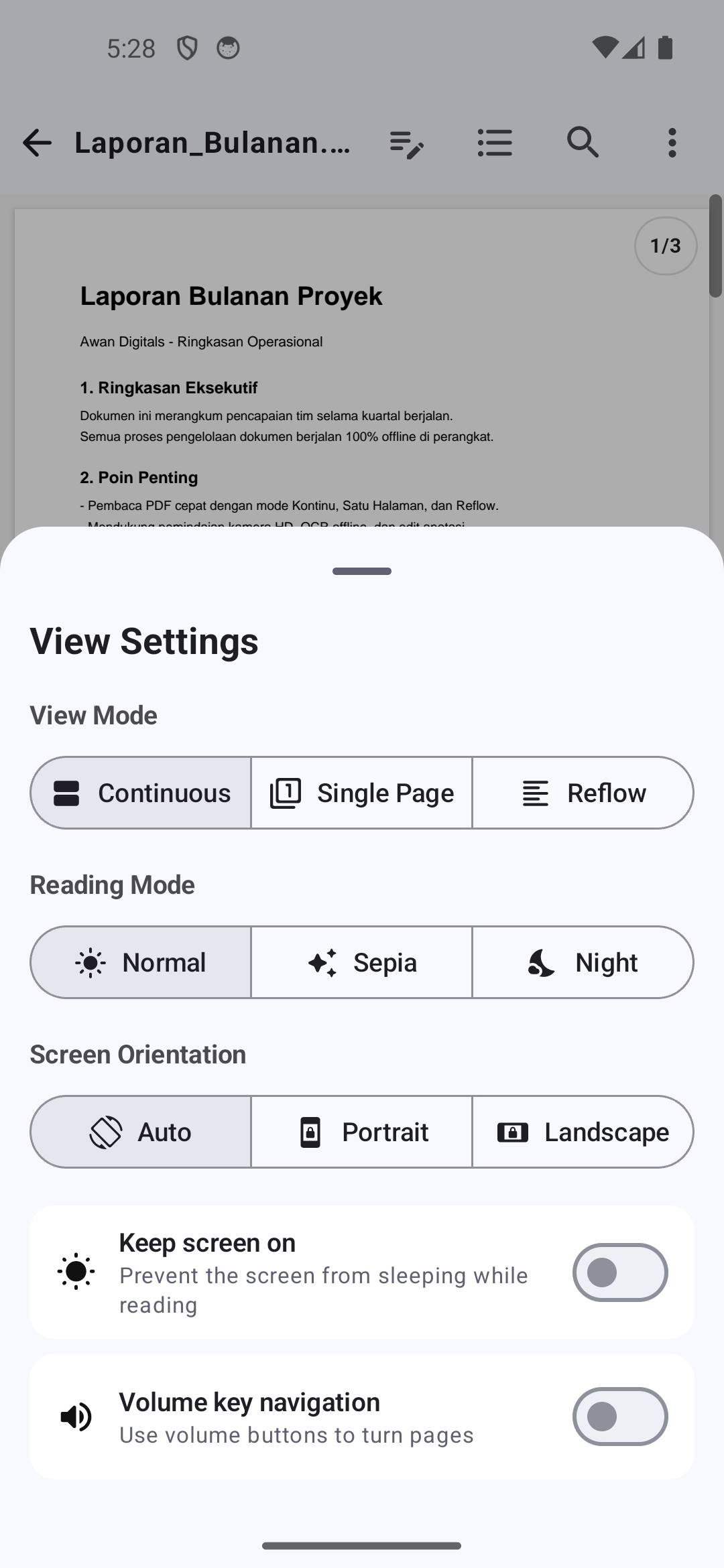
- View Mode:
- Continuous: smooth vertical scrolling across pages.
- Single Page: one page at a time; swipe left or right to turn pages and double-tap to zoom.
- Reflow: extracts page text into a responsive e-book layout that fits your screen width, with quick text size controls and Sans / Serif font options. If a page is an image scan with no embedded text, a shortcut lets you switch back to Page View.
- Reading Mode: choose Normal, Sepia (warm tone for long reading sessions), or Night.
- Screen Orientation: choose Auto, lock Portrait, or lock Landscape.
- Keep Screen On: prevents the display from turning off while you read.
- Volume Key Navigation: use your device volume buttons to turn pages.
Table of Contents and Page Bookmarks
Tap the list icon in the top bar to open Contents & Bookmarks:
- Contents Tab: displays the document's built-in outline if available. Tap any entry to jump straight there.
- Bookmarks Tab: tap Bookmark Page to save important pages along with an optional personal note. Bookmarks can be edited or removed anytime.
In-Document Search, Text Selection, and Links
- Search in PDF: tap the search icon in the top bar, enter a keyword, and step through highlighted matches with the previous and next arrows.
- Select & Copy Text: long-press text on a page to select, copy to clipboard, share, or search for that phrase across the document.
- Internal & External Links: tap internal links to jump to a target page (a Return to page X pill appears so you can jump back easily), or open external web links after confirmation.
Read Aloud (Offline) and Print
From the Viewer three-dot menu, you can also access:
- Read Aloud (Offline): listens to document text using Android's offline Text-to-Speech engine. Play or pause, skip to the previous or next sentence, and adjust speech rate and language.
- Print: sends the document directly to Android's print service. Password-protected PDFs must be unlocked before printing.