Edit PDF, Signatures, and Forms
Awan PDF provides an all-in-one PDF editor, reusable signature placement, and an offline AcroForm filler.
Edit PDF
Open Edit PDF from the pencil button in the Viewer top bar, from the file action menu, or via Tools > Edit PDF.
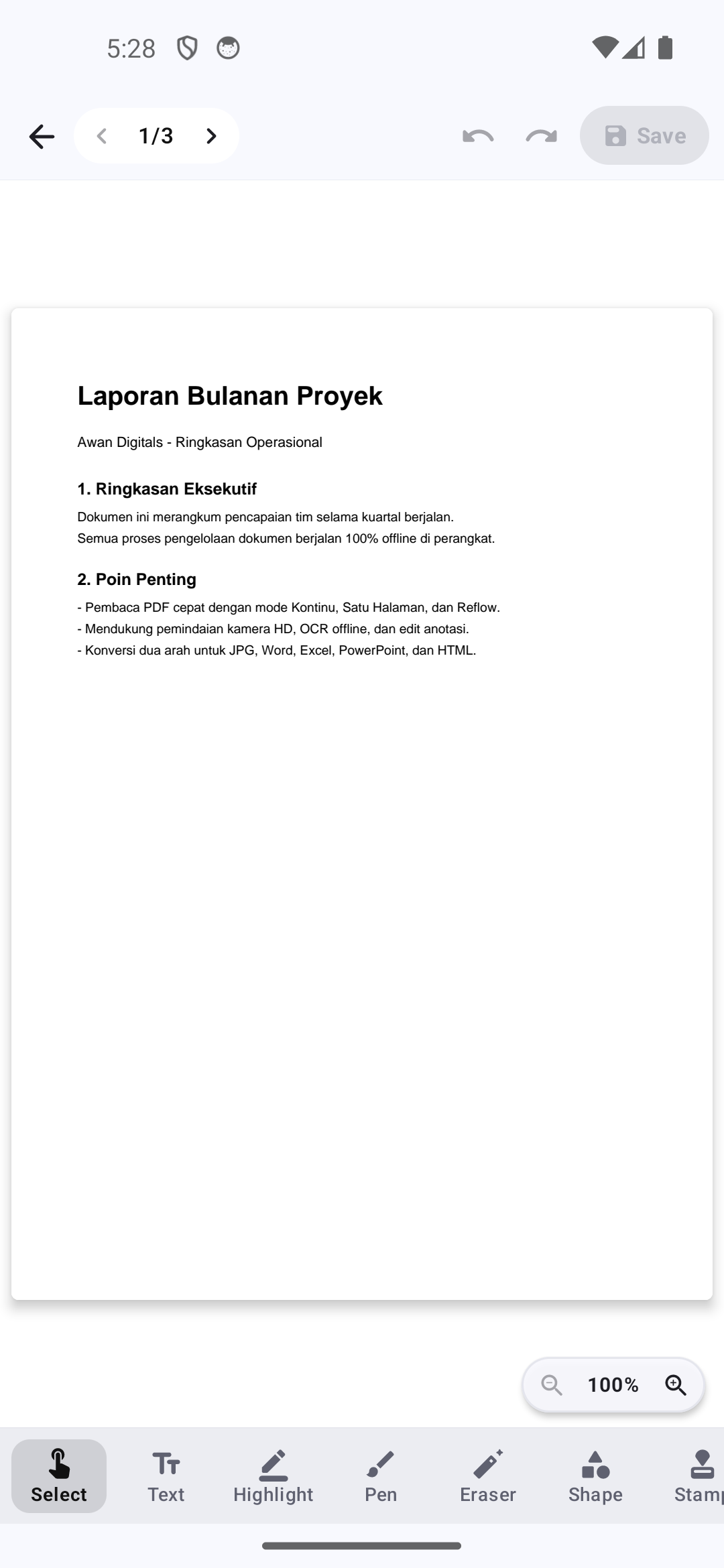
Bottom Toolbar Tools
- Select: tap any added object to move it, pinch with two fingers to resize, or delete it.
- Text: tap existing PDF text to edit it, or tap an empty area to add new text. The formatting bar includes:
- Font: built-in fonts plus a Google Fonts catalog that can be downloaded and stored offline on your device.
- Size, Style & Alignment: adjust font size, Bold, Italic, Underline, and left/center/right alignment.
- Color & Eyedropper: pick from presets, enter a Hex code, or use Pick color from PDF to match colors directly from the page.
- Highlight: mark key passages with translucent highlight strokes.
- Pen: freehand drawing with 6 thickness presets (Extra Thin to Jumbo) and line styles (Solid, Dashed, Dotted, Dash-Dot, Bubble, Heart, Star, Diamond).
- Eraser: swipe over pen or highlight strokes to erase them.
- Shape: place rectangles, circles, lines, or arrows with customizable stroke color, fill (or no fill), line style, and opacity.
- Image: insert photos or logos from your gallery onto any page.
- Quick Stamps: place ready-made stamps including APPROVED, DRAFT, CONFIDENTIAL, PAID, URGENT, and Today's Date.
Use Undo, Redo, and Zoom for finer control. When tapping Save, choose Save Copy (creates a new file) or Overwrite Original.
Sign PDF
Open Tools > Sign PDF (or from a file's action menu) to sign documents:
- Create or Pick a Signature:
- Draw: draw directly on the pad, or switch to Fullscreen Draw for more room.
- Type: type your name and choose from handwriting font styles.
- Upload: pick an existing signature image from your gallery.
- Created signatures are automatically stored under Saved Signatures for reuse across documents.
- Place the signature on the desired page, drag to position, pinch with two fingers to resize, or move it between pages before tapping Save PDF.
Fill PDF Form (AcroForm)
When you open a PDF containing interactive form fields in the Viewer, a Form detected banner appears at the top. You can also launch it from Tools > Fill PDF Form.
- Supports text inputs, checkboxes, radio buttons, and dropdowns.
- Switch between Field List (structured input list) and Page View (previewing the page layout while filling).
- Toggle Flatten form on save to lock all filled values permanently so recipients cannot alter them.