Getting Started & PDF Library
Awan PDF is an offline PDF reader and toolkit for Android. No account or sign-in is required; your documents, saved signatures, and processed files stay on your device.
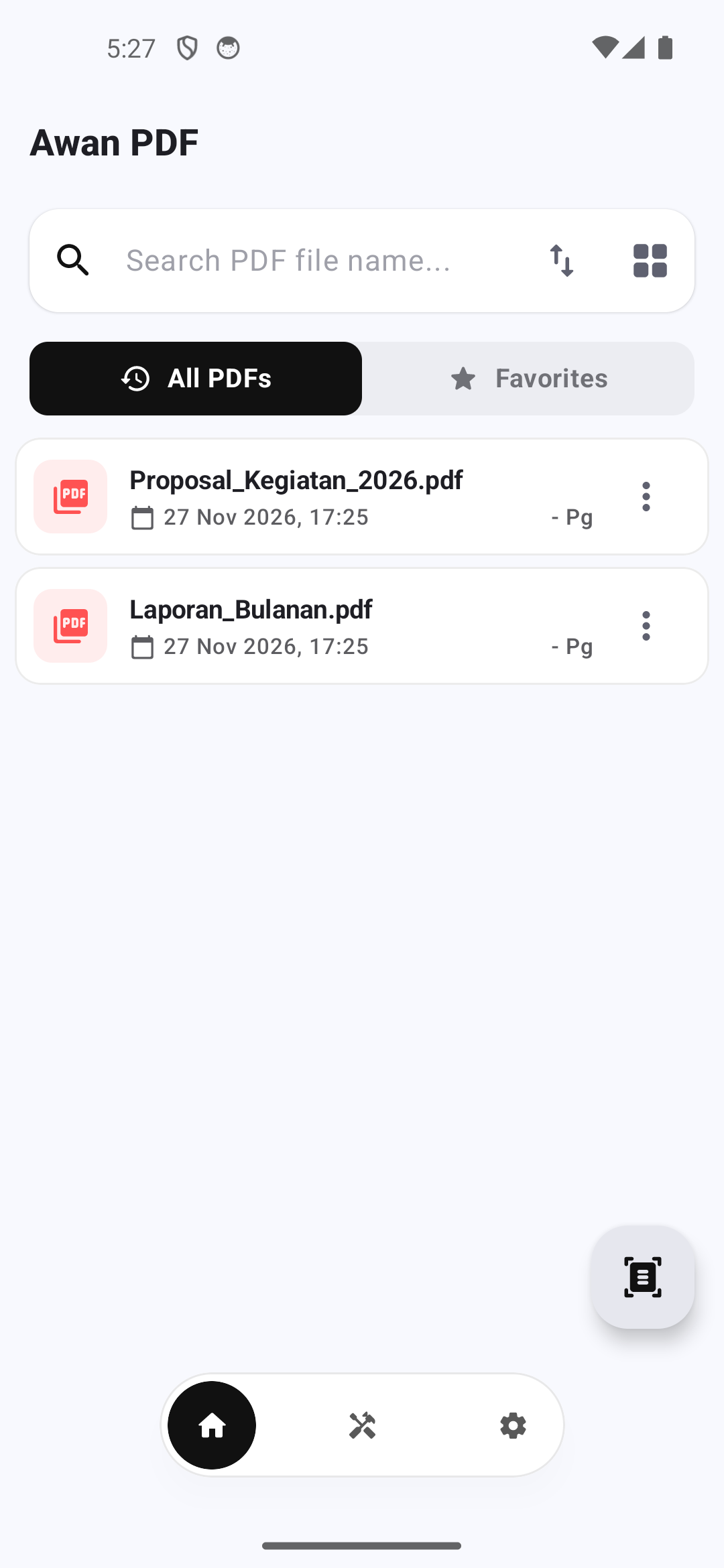
Opening and Scanning PDF Files
You can open documents in three ways:
- Open PDF: tap the floating button at the bottom right of the Home tab and choose Open PDF to pick a file using the Android system picker. This works even without granting all-files storage permission.
- Scan File: tap the floating button and choose Scan File to index all PDF files across your device storage (Download, Documents, and internal storage). This requires the All files access permission.
- Open from Other Apps: tap any PDF in your file manager, messenger, or email app and choose Awan PDF. You can also long-press the Awan PDF launcher icon for quick shortcuts (Scan Document, Open PDF, or PDF Tools).
Searching, Sorting, and Filtering
Use the top bar on the Home tab to locate files quickly:
- Search Bar: type part of a file name to filter the list right away.
- Sort & Filter: tap the sort icon to sort by Date (Newest/Oldest), Name (A-Z / Z-A), or Size (Largest/Smallest), and filter by All, In Progress, or Locked PDFs.
- List / Grid View: tap the view toggle on the right to switch between a compact list and a grid with first-page thumbnails.
Quick Actions per File
Tap the three-dot button on any file to open its action sheet:
- Rename or Duplicate the file.
- Detail: check file path, size, page count, reading progress (%), open count, and reading duration, with an option to Reset Statistics.
- Share or Print the document.
- Direct Tools: jump straight into Edit PDF, Organize, Split, Rotate, Crop, Sign, Compress, Watermark, Page Numbers, Extract, OCR, Fill Form, Flatten, Metadata, or Protect PDF. For password-locked files, only Remove Password PDF is shown.
- Remove from History (keeps the original file intact) or Delete permanently from storage.
Multi-Select Mode
Long-press any file on Home to enter multi-select mode. From there you can:
- Merge multiple unlocked PDFs into a single file.
- Favorite all selected files at once.
- Share multiple PDFs together.
- Delete selected files in one step.